How to Speed Up Any Android Phone in 10 Minutes — No Reset, No Risk
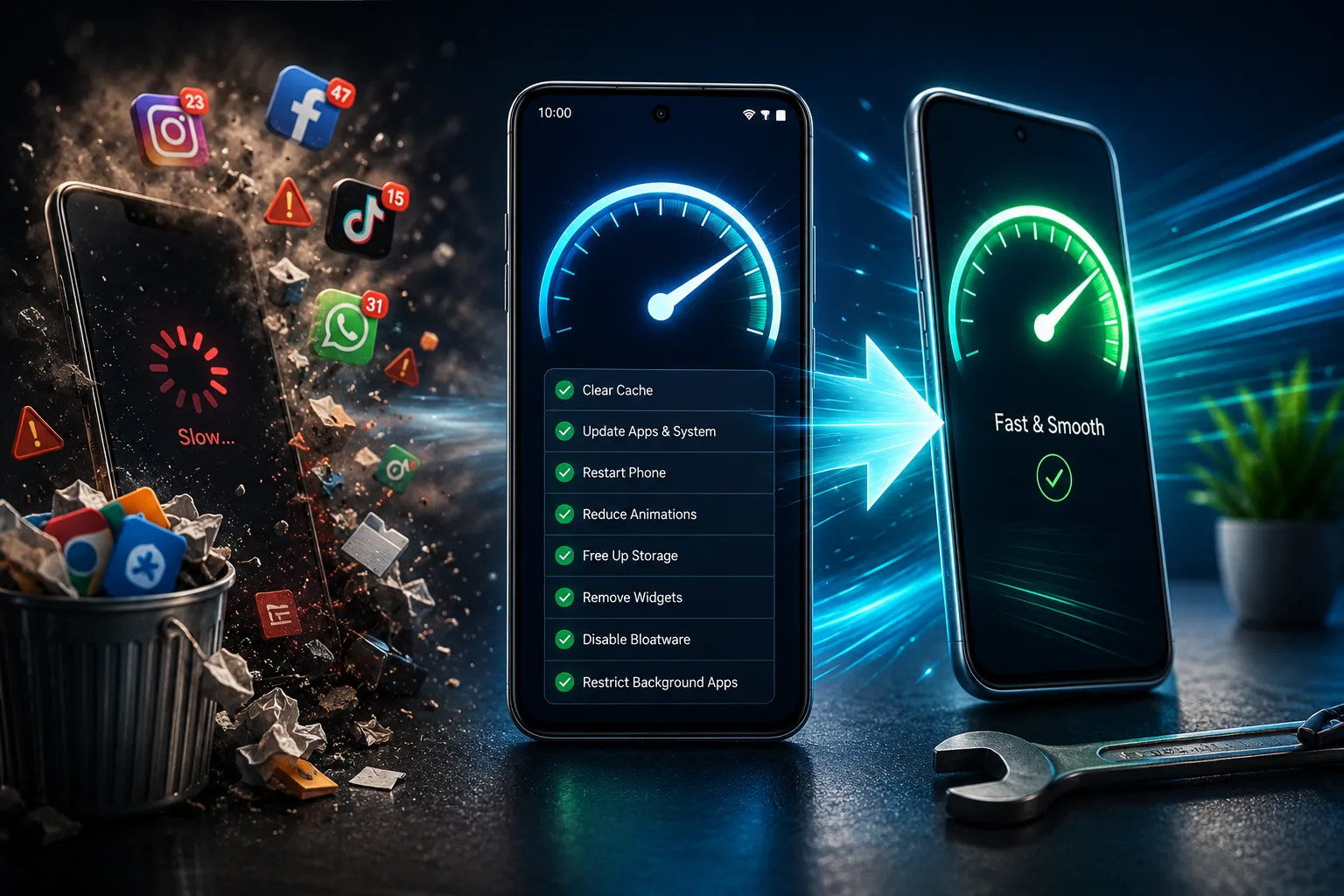
Your Phone Is Not Dying. It Is Just Cluttered.
You did not buy a new phone for it to feel this slow.
Apps that used to open instantly now take three seconds. Scrolling stutters. The keyboard lags half a second behind your typing. And somewhere in your head a thought keeps surfacing — maybe it is time for a new phone.
It probably is not.
Most Android slowdown has nothing to do with your hardware failing. Your phone could be slow because it's low on memory, has too many apps running in the background, is using outdated software, or has a build-up of cache. None of those problems require a new phone. All of them are fixable in the next ten minutes.
I tested every fix below myself and kept only the ones that actually move the needle. No sketchy "booster" apps. No factory reset. Just real, built-in Android tools that genuinely work. Let us go.
Minute 1-2: Clear Your Cache — The Single Most Effective Fix
This is where you start because it solves more slowdown than anything else on this list.
A build up of cache, whether in your mobile browser or social media apps, can clog up your storage and slow down your device. Apps like Instagram, TikTok, WhatsApp, and Chrome accumulate temporary files every single day you use them. Over months that adds up to gigabytes of dead weight your phone is dragging around.
Go to Settings → Apps → select your heaviest apps (start with Facebook, Instagram, YouTube, and Chrome) → Storage → Clear Cache.
Do not tap "Clear Data" — that deletes your logins and saved settings. "Clear Cache" only removes temporary junk files. Clearing cache does not delete your photos or app data — your personal data stays safe.
Do this for your five heaviest apps and you have already solved a meaningful chunk of your lag problem in under two minutes.
Minute 3-4: Update Everything — Apps and System
This sounds boring. It is genuinely one of the most effective things on this entire list.
Updates often include performance optimizations, bug fixes, and security patches that make apps run more smoothly. Developers regularly release updates specifically to improve performance on older devices.
Open the Play Store → tap your profile icon → Manage apps & device. You will see how many app updates are waiting. Tap "Update all" to install them at once.
Then check Settings → System → System update for your Android OS version itself. Android 16 continues Google's focus on performance, productivity, and user experience improvements. If your phone is sitting on outdated software, you are missing real performance fixes Google has already shipped.
This step runs in the background while you do the next fixes — set it going and keep moving.
Minute 5: Restart Your Phone — The Fix Everyone Skips
This sounds too simple to matter. It matters more than you think.
Reboot once a week to clear RAM and stop stuck processes — most people never restart their phone for weeks at a time. Background apps accumulate in memory, half-finished processes pile up, and your phone's RAM slowly fills with things you are not actively using.
Hold the power button, tap restart, and let it fully reboot. This single action clears your active memory completely and gives every app a clean slate. One user with a two-year-old mid-range phone regained near-new speed just by clearing cache and reducing animations — apps that once took 8 seconds to load opened in under 2 seconds.
Cache clearing plus a restart alone solves the majority of everyday Android lag.
Minute 6: Reduce Animation Speed — The Instant "Feels Faster" Trick
This is the trick almost nobody knows exists and it makes your phone feel dramatically snappier in seconds.
Go to Settings → About Phone → tap Build Number seven times until it says "You are now a developer." Then go to Settings → System → Developer Options and find three settings: Window Animation Scale, Transition Animation Scale, and Animator Duration Scale.
Set Window Animation Scale, Transition Animation Scale, and Animator Duration Scale to 0.5x. Or turn them off completely for maximum speed.
Here is what this actually does: animations make Android visually appealing, but they also consume processing power. Reducing or disabling animations makes the interface feel instantly faster, even though the actual processing speed remains the same. It is a perception trick — but it is the single fastest way to make your phone feel snappier in literally ten seconds.
Minute 7: Free Up Storage — Check Your Percentage Right Now
Go to Settings → Storage and look at your free space percentage.
When storage drops below 15 to 20 percent, performance degradation becomes noticeable. Your phone needs breathing room to save temporary files and manage background tasks efficiently. A nearly full phone cannot do this properly no matter how powerful the processor is.
Quick fixes if you are low:
Open Files by Google (pre-installed on most Android phones) — it scans your phone and shows exactly what is taking up space, with a one-tap cleanup for junk files, duplicate photos, and old downloads.
Check your WhatsApp media folder specifically — this is almost always the biggest hidden storage hog on Android phones, full of forwarded images and videos you never asked to save.
Move photos and videos to Google Photos cloud backup and delete the local copies once backed up.
Minute 8: Disable Unused Widgets — The Hidden Battery and RAM Drain
If your home screen has weather widgets, news feeds, or social media widgets sitting there — they are working constantly in the background even when you are not looking at your phone.
Each widget refreshes data constantly, draining RAM and CPU. Remove weather, news, and social widgets you don't actively need.
Long-press any widget you do not genuinely check daily and remove it. This frees up RAM that your actual apps could be using instead.
Minute 9: Disable Bloatware You Never Use
Every Android phone — Samsung, Xiaomi, OPPO, vivo — comes pre-loaded with apps you never asked for and never open.
Bloatware consumes RAM, storage, and sometimes runs background services without providing real value. Disabling bloatware can significantly speed up an Android phone by reducing system load and freeing up memory.
You usually cannot fully uninstall these manufacturer apps, but you can disable them. Go to Settings → Apps, find the pre-installed apps you never use, and tap Disable where the option is available. This stops them from running background processes permanently.
Minute 10: Check Background App Permissions
The final step targets the apps quietly draining your phone even when you are not using them.
Go to Settings → Apps → [select an app] → Battery → Background Usage. By restricting background activity for non-essential apps, you ensure that critical system functions receive priority access to resources, resulting in smoother multitasking and reduced lag.
You do not need to do this for every app — just the handful you know are not essential to run constantly in the background. Social media apps you check occasionally, games you are not currently playing, shopping apps — restrict their background activity and your phone immediately has more resources available for what you are actually using.
What These Ten Minutes Actually Fixed
Action | What It Solves |
|---|---|
Clear cache | Removes accumulated junk files slowing app launches |
Update apps and system | Installs performance fixes developers already shipped |
Restart phone | Clears RAM and kills stuck background processes |
Reduce animations | Makes interface feel instantly snappier |
Free up storage | Gives system room to manage tasks efficiently |
Remove widgets | Stops constant background refreshing |
Disable bloatware | Frees RAM from apps you never use |
Restrict background apps | Prioritises resources for active apps |
When Ten Minutes Is Not Enough
If you have done all of this and your phone is still genuinely struggling, the problem might not be software anymore.
If your phone runs very slowly, lags, or takes a long time to respond after trying these steps, the issue may be hardware related. Check your battery health in Settings — a degraded battery can cause your phone to throttle performance to protect itself. If your phone is overheating regularly even during normal use, that is also worth getting checked at a service centre.
Very old hardware over five years old may still feel limited even after optimisation. If your phone has genuinely reached that age and these fixes only made a marginal difference, it might honestly be time to consider an upgrade — and our laptop and budget phone guides can help you find the right replacement without overspending.
But for the vast majority of Android phones experiencing lag in 2026 - these ten minutes will make a real, noticeable difference. Try it before you assume the worst.
Bilal Salfi | BS Insider